
Discord Integration
Welcome to the TIXAE Agents Discord integration guide! This document will help you quickly connect and configure Discord with TIXAE Agents, enabling seamless communication between your Discord server and AI agent.Why Integrate Discord with TIXAE Agents?
By integrating Discord with TIXAE Agents, you can:- Automate responses to common user queries
- Provide round-the-clock support in your Discord server
- Streamline community management and engagement
Prerequisites
Need Help Setting Up?
Our integration specialists are available to guide you through the Discord
setup process. Reach out for personalized assistance!
- An active TIXAE Agents account with appropriate permissions
- Administrative access to the Discord server where you want to add the bot
Steps to Integrate Discord with TIXAE Agents
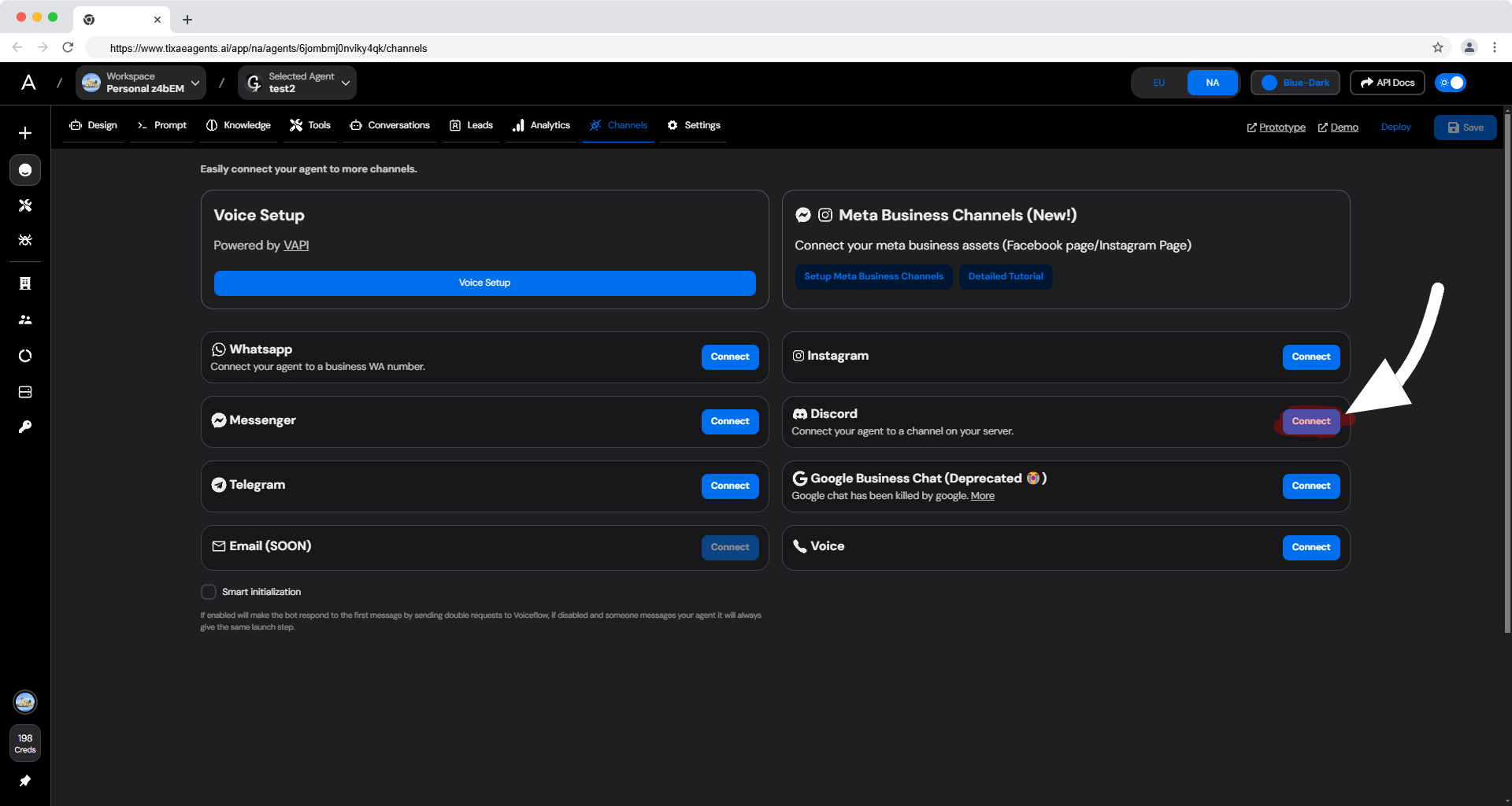
Locate Discord Integration
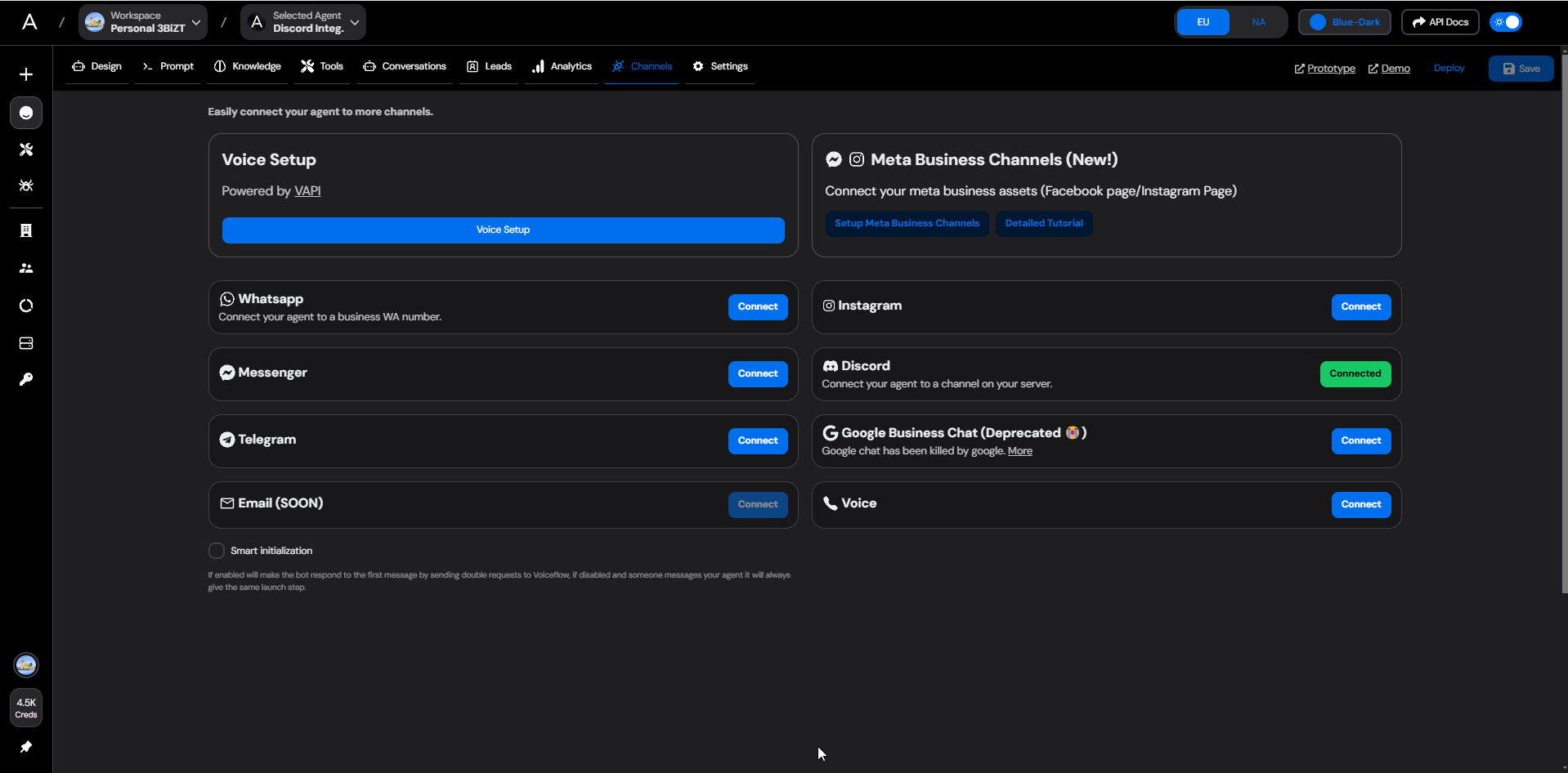
- Log in to your TIXAE Agents dashboard
- Navigate to the Channels tab
- Find the Discord option
- Click on Connect
Add Bot to Discord Server
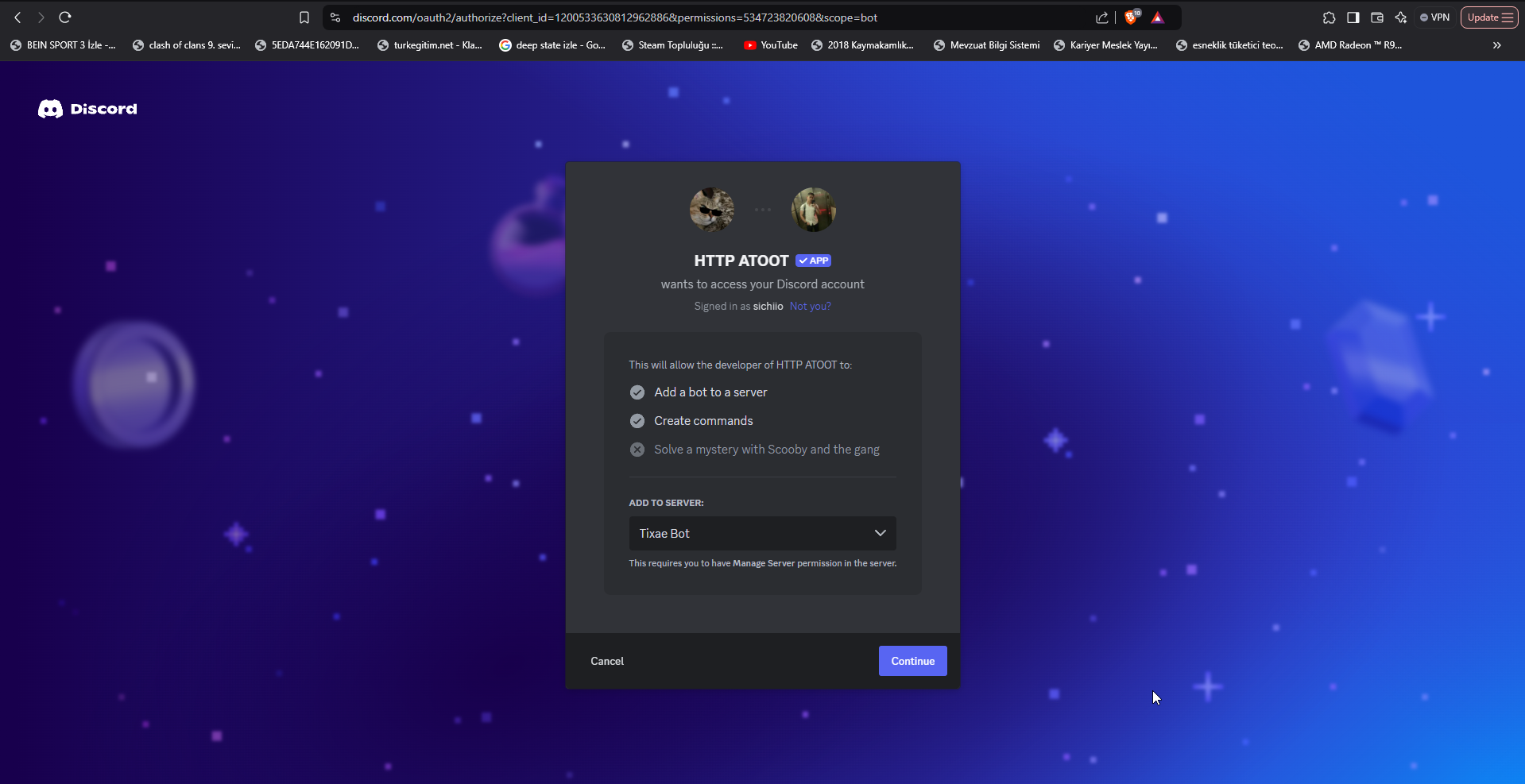
- In the configuration modal, locate the Add to Discord button
- Click the button to open Discord’s authorization window
- Select your target Discord server from the dropdown
- Review and approve the required permissions:
- Send Messages
- Read Messages/View Channels
- Other relevant permissions
Set Up Discord Webhook
- In your Discord server, navigate to the desired channel
- Click the gear icon (⚙️) to access Edit Channel
- Go to Integrations > Webhooks
- Click New Webhook
- Configure the webhook:
- Set a name for the webhook
- Click Copy Webhook URL
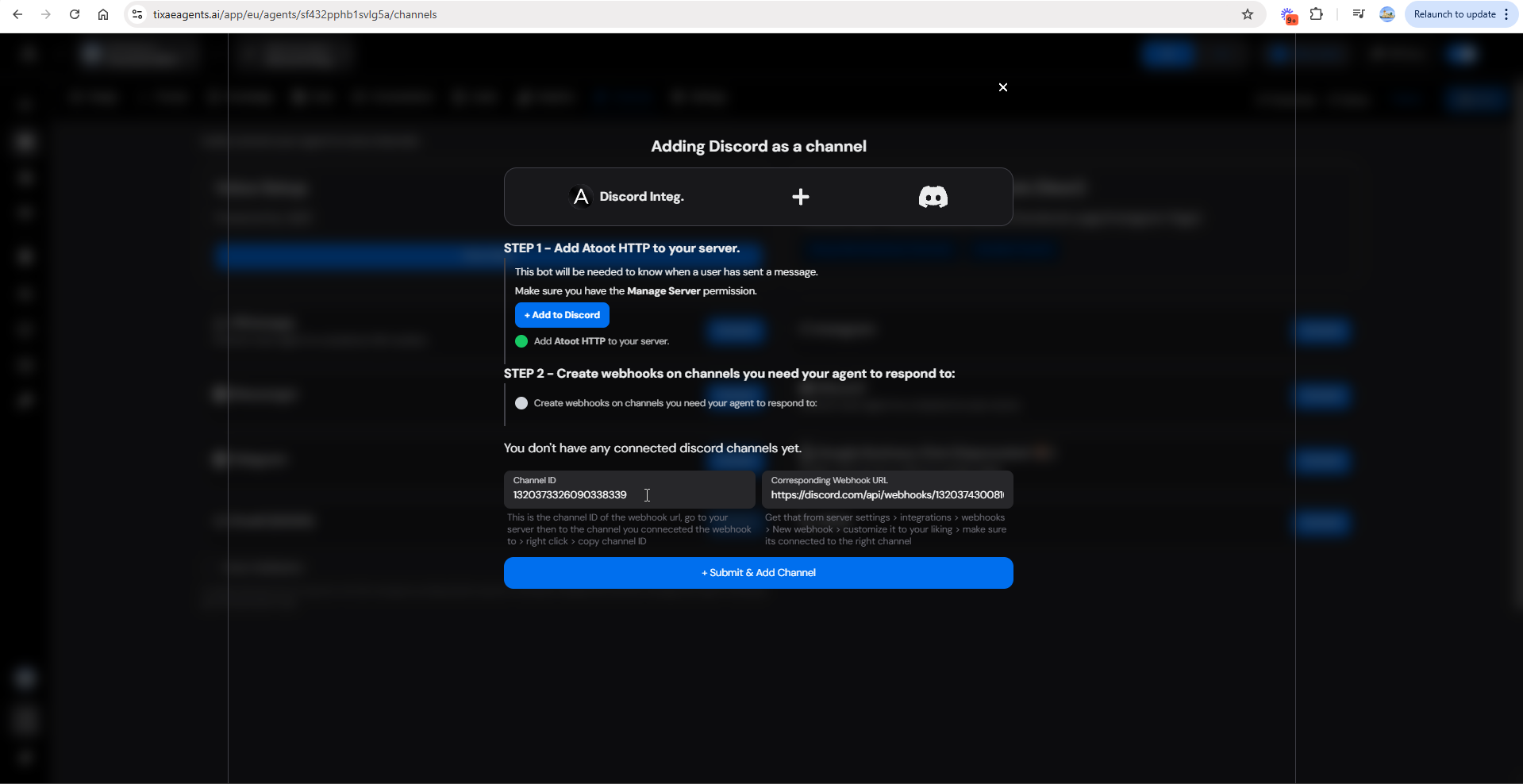
- Return to TIXAE Agents dashboard
- Paste the webhook URL in the Webhook URL field
Configure Channel ID
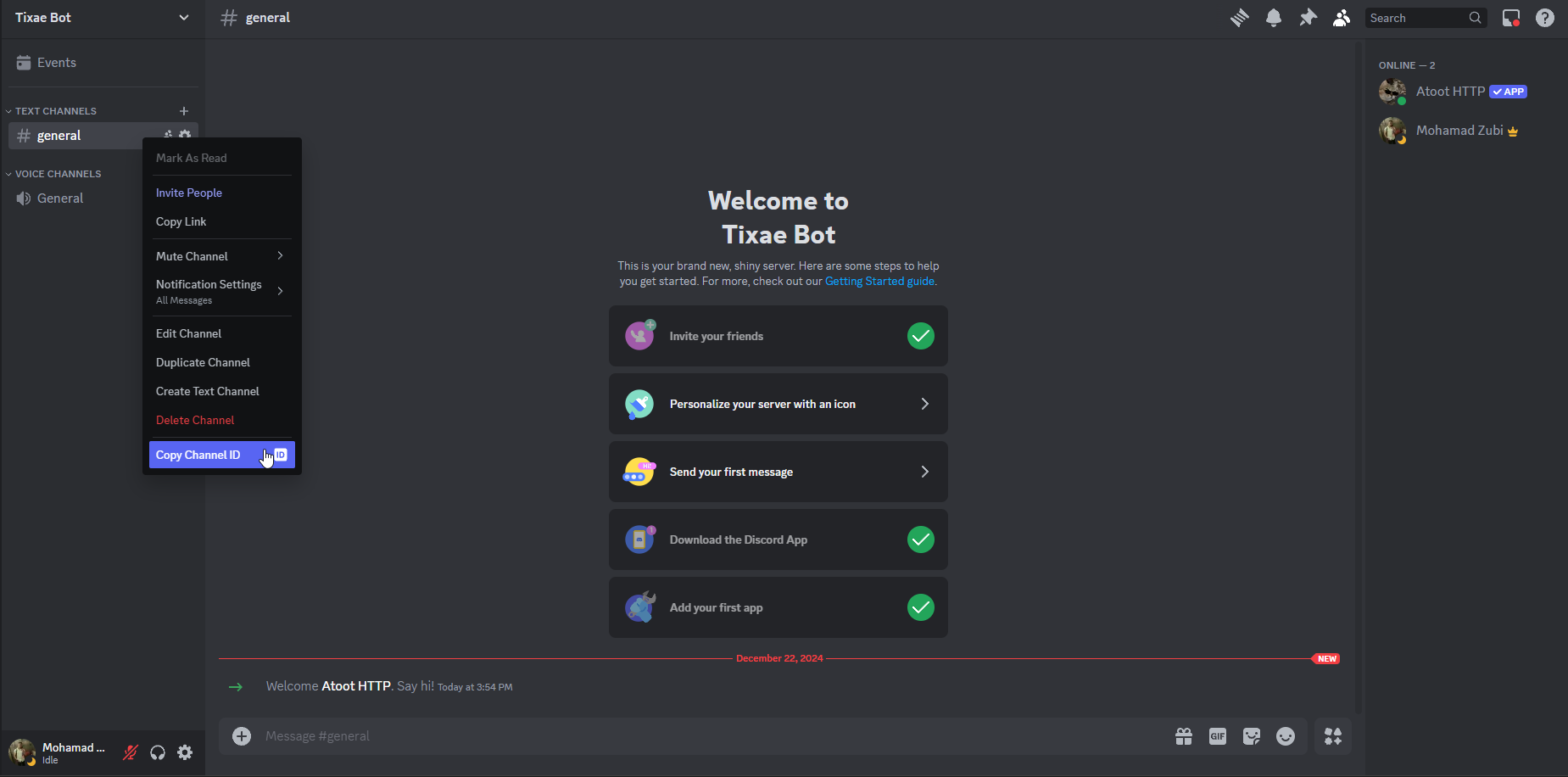
- Return to your Discord server
- Right-click on the target channel
- Select Copy Channel ID
- Paste the ID in the Channel ID field on TIXAE Agents
Complete Integration
- Review all entered information
- Click Submit & Add Channel
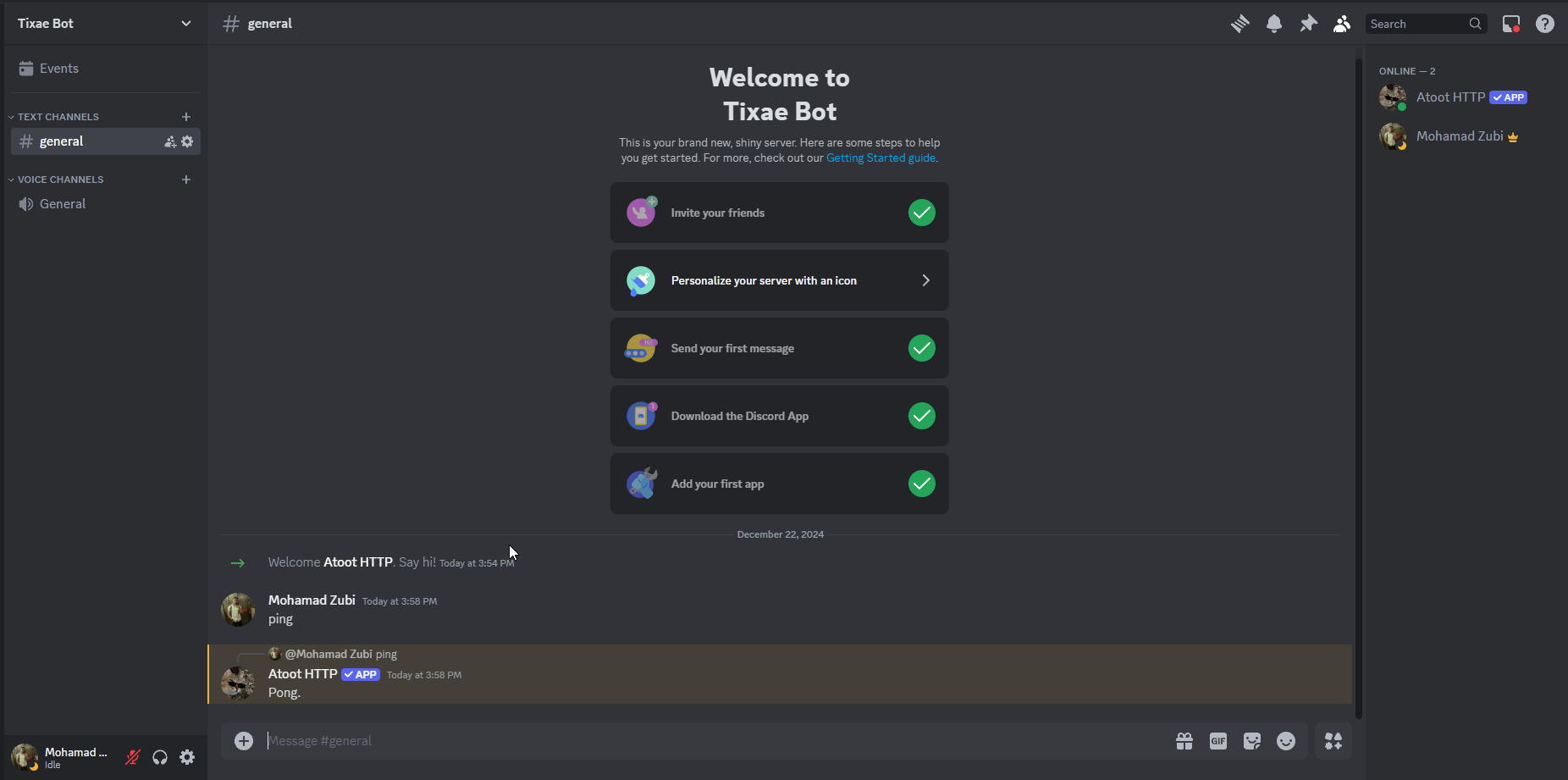
- Wait for confirmation message
Troubleshooting
Most integration issues can be resolved by verifying permissions and
configuration settings.
- Bot not responding: Verify bot permissions and webhook URL
- Channel ID errors: Ensure Developer Mode is enabled and the correct ID is copied
- Webhook failures: Confirm the webhook URL is valid and properly configured
Best Practices
Optimize Your Setup
Regular monitoring and maintenance of your Discord integration ensures optimal
performance and user experience.
- Test the bot in a private channel before deploying to public channels
- Regularly verify bot functionality
- Keep bot permissions updated as needed
Security Considerations
- Regularly audit bot permissions
- Monitor channel activity
- Update webhook settings as needed